How to Make a Reel on Instagram: A Step-by-Step Guide
Learn how to make a Reel on Instagram, from recording or uploading clips to adding music, captions, a cover, and publishing your video.
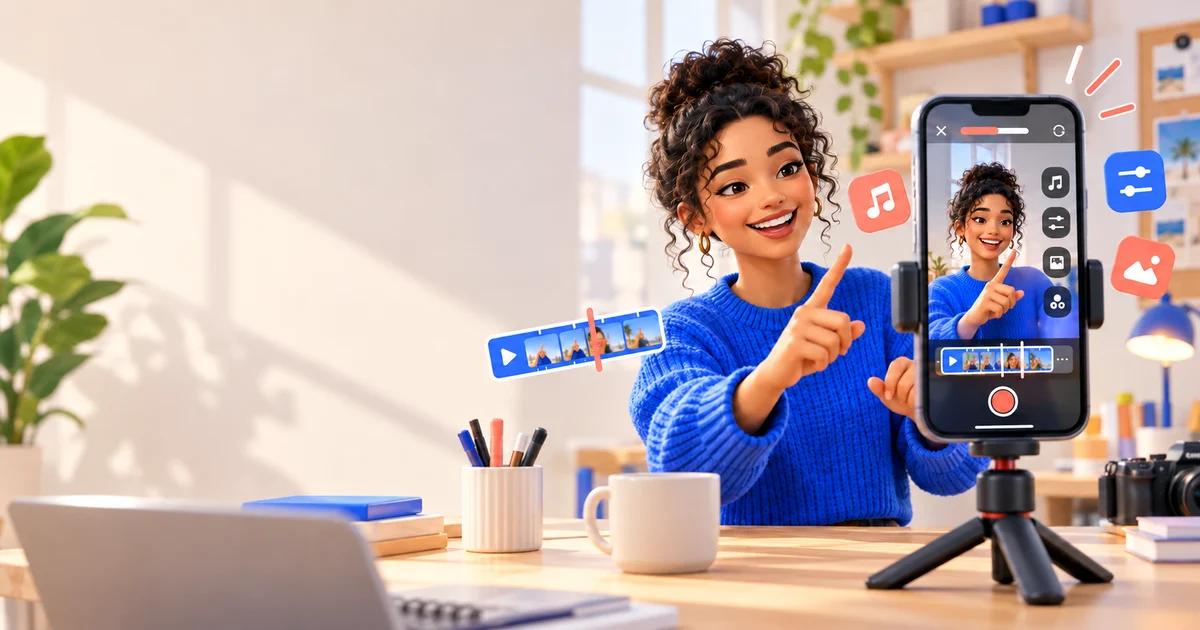
You can make an Instagram Reel by recording inside the app or uploading clips and photos from your phone. Then you can trim the media, add music and captions, choose a cover, and publish the finished video.
Button positions may vary by phone, app version, or account, but the basic workflow remains the same. This guide covers the complete process.
1. Open the Instagram Reel Creator
Open Instagram and look for the option to create new content. Depending on your app version, you may be able to:
- tap the Create or plus button;
- tap the plus button from your profile;
- swipe into the Instagram camera from the home screen; or
- open the Reels section and tap the camera or create button.
Choose Reel when Instagram asks which type of content you want to make.
Instagram changes its navigation and may show different layouts to different accounts. Look for the Reel or Create label rather than relying on one exact button position.
2. Record a Video or Upload Existing Media
Once the Reel creator is open, you can record inside Instagram or select media from your phone.
Use the capture button to record the entire video at once or divide it into several clips. Separate clips are useful for changing camera angles, demonstrating steps, switching locations, or delivering one sentence at a time.
The Reel camera may also include tools such as:
- a timer and countdown for hands-free recording;
- speed controls for faster or slower motion;
- effects and filters; and
- an alignment tool for matching the position of objects between clips.
If you already filmed the content, select one or more videos from your gallery. Some creation flows also let you combine photos with video. After importing the media, change the order, trim the clips, and remove parts you do not need.
3. Trim and Arrange Your Clips
Keep only the parts that help tell the story. Remove long pauses, repeated explanations, accidental camera movement, and empty moments around the main action.
Instagram Reels are designed for vertical viewing. A vertical frame close to a 9:16 aspect ratio generally uses the phone screen more effectively than a horizontal video.
Keep important information away from the outer edges. The Reel player adds interface elements such as the account name, caption, audio information, and buttons for likes, comments, and sharing. Text or faces placed too close to those areas may become difficult to see.
Every clip should have a purpose. Use the opening to show the topic, result, or problem quickly.
4. Add Music, Original Audio, or a Voiceover
Sound can come from several places. You may use music from Instagram's library, the original sound recorded with your video, an audio track that is available for reuse, or a voiceover that you record during editing.
If the Reel includes spoken instructions, lower the background music so every word remains clear.
You may not see the same music as another creator. Music availability can vary by country, region, account type, and intended use. Some business accounts have more limited access to licensed music. If a song shown in a tutorial is missing, that does not necessarily mean the Reel feature is broken.
When music is unavailable, use original audio, record a voiceover, or choose another permitted track. Businesses should check whether music is cleared for commercial use.
5. Add Text, Captions, and Effects
After the main clips are in place, you can add text, captions, stickers, filters, transitions, or other visual effects.
Use on-screen text for a short title, an important step, a product name, or a call to action. Avoid long paragraphs and give viewers enough time to read each message.
Captions are especially useful for videos with speech. Some people watch with the sound turned off, while others understand the message more easily when they can read it. If Instagram creates automatic captions, review them before publishing. Names, brands, accents, and technical terms are common sources of transcription errors.
Check that captions appear at the right time and are not hidden behind the Reel interface. Clear text is more useful than too many fonts, colors, and animations.
6. Use a Reel Template if You Want a Faster Start
Templates can provide timing, audio, and placeholders for photos or video clips. They work well for travel highlights, product collections, before-and-after videos, and edits that follow a song's beat. Replace the placeholders with your own media and keep the final message clear.
7. Choose a Cover Image
Before publishing, choose a cover that represents the Reel. The cover may appear on your profile, in the Reels section, or in other places where the video is shown as a smaller preview.
A useful cover has a clear subject and good contrast at thumbnail size. Keep any title short and near the center so profile-grid cropping does not remove important words.
The cover should accurately represent the video rather than promise something the Reel does not deliver.
8. Write the Caption and Check Your Publishing Options
Use the caption for a short summary, key steps, a question, relevant accounts, or the names of tools and products used in the Reel.
Use a few relevant hashtags instead of a long list of popular terms unrelated to the content.
Before posting, review the available publishing settings. Depending on your account and app version, these may include options to:
- show the Reel on your main profile grid;
- share it to Facebook;
- tag people, brands, products, or a location;
- allow other users to remix the Reel;
- add accessibility information;
- disclose a paid partnership; or
- save the Reel as a draft.
If a brand paid you or provided a benefit in exchange for the content, check whether you need Instagram's paid partnership label.
9. Understand Who Can See Your Reel
Your account privacy settings affect the audience for your Reel. A Reel from a public account may be shown beyond the account's existing followers. A Reel from a private account is generally limited to approved followers.
Public posting does not guarantee recommendations or a particular number of views.
If you are not ready to publish, save a draft. Keep the original media elsewhere because an Instagram draft should not be your only copy.
10. Preview and Publish the Reel
Watch the complete Reel one more time before tapping Share. Check the following:
- Does the opening quickly explain the topic?
- Are the clips in the correct order?
- Is the audio synchronized with the video?
- Can you hear speech over the music?
- Are the captions accurate and easy to read?
- Is any important text covered by interface buttons?
- Does the cover match the content?
- Are the tags, privacy settings, and sharing options correct?
When everything looks right, publish the Reel and keep the app open while the video uploads.
Simple Tips for Making a Better First Reel
You do not need a professional camera. A phone, steady framing, enough light, and clear sound are sufficient for many Reels.
Before filming, describe the video's purpose in one sentence. For example: “This Reel will show beginners how to add automatic captions.” If the idea cannot fit into one clear sentence, you may be trying to cover too many topics at once.
Start with the result, question, or main action instead of a long introduction. Keep the background simple and record speech in a quiet place.
After publishing, look beyond views. Saves, shares, comments, and viewing time can help you improve the next Reel.
Frequently Asked Questions
Do I need professional equipment to make an Instagram Reel?
No. A phone, natural light, and a quiet place to record are enough to learn the basic workflow.
Can I make a Reel with videos and photos already on my phone?
Yes. Open the Reel creator and choose media from your gallery. You can upload existing clips and, where the creation flow supports it, combine them with photos.
Why can I not find a particular song?
Music availability depends on licensing, location, account type, and how the content will be used. Another account may have access to a song that does not appear in your library.
Can I save a Reel and publish it later?
Instagram normally lets you save a Reel as a draft. Keep a separate copy of the original media.
Final Checklist
To make a Reel on Instagram, open the Reel creator, record or upload your media, trim the clips, add sound and captions, choose a cover, review the publishing settings, and preview the complete video before sharing it.
For your first Reel, focus on one clear idea and make the picture, voice, and text easy to understand. Once the basic process feels familiar, you can experiment with templates, transitions, multi-clip recording, and more advanced effects.
Continue with GramPeek
Explore public Instagram content
Written by GramPeek Editorial Team. This article explains publicly reported Instagram features and does not imply affiliation with Instagram or Meta.